Import a model1
Revised
This page shows how to import a model from Safetensors weights or from a GGUF file, and how to share a model on ollama.com.2?1
Table of Contents
Importing a model from Safetensors weights
3Create a
Modelfilewith aFROMcommand that points to the directory containing your Safetensors weights:FROM /path/to/safetensors/directoryIf you create the
Modelfilein the same directory as the weights, you can use the commandFROM ..Run the
ollama createcommand from the directory where you created theModelfile:X16ollama create my-modelTest the model:
ollama run my-model
Importing a GGUF model
Ollama doesn't quantize GGUF models during import. Before you import, prepare and quantize them with a GGUF tool such as llama.cpp's4 llama-quantize.
To import a single-file GGUF model, create a Modelfile containing:
FROM /path/to/file.gguf
For a split GGUF model, keep the original split filenames and use a wildcard that matches every shard:5X39
FROM /path/to/model-*.gguf
Once you've created your Modelfile, use the ollama create command to build the model:6X16?2
ollama create my-model
Sharing your model on ollama.com
You can share any model you've created by pushing it to7 ollama.com so that other users can try it out.
8Go to the Ollama Sign-Up page in your browser. If you already have an account, skip this step.
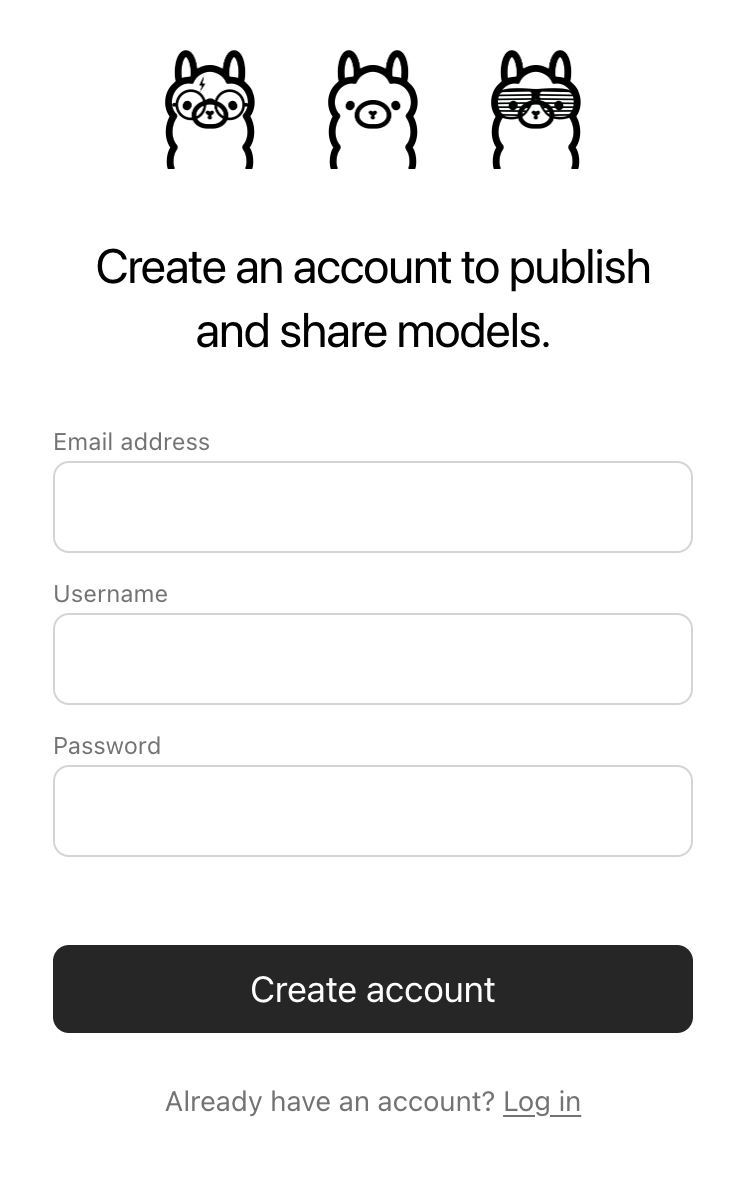
The Username field is part of your model's name, for example
jmorganca/mymodel, so make sure you're comfortable with the username you choose.?3Once you've created an account and signed in, go to the Ollama Keys Settings page.
Follow the directions on the page to find where your Ollama Public Key is located.
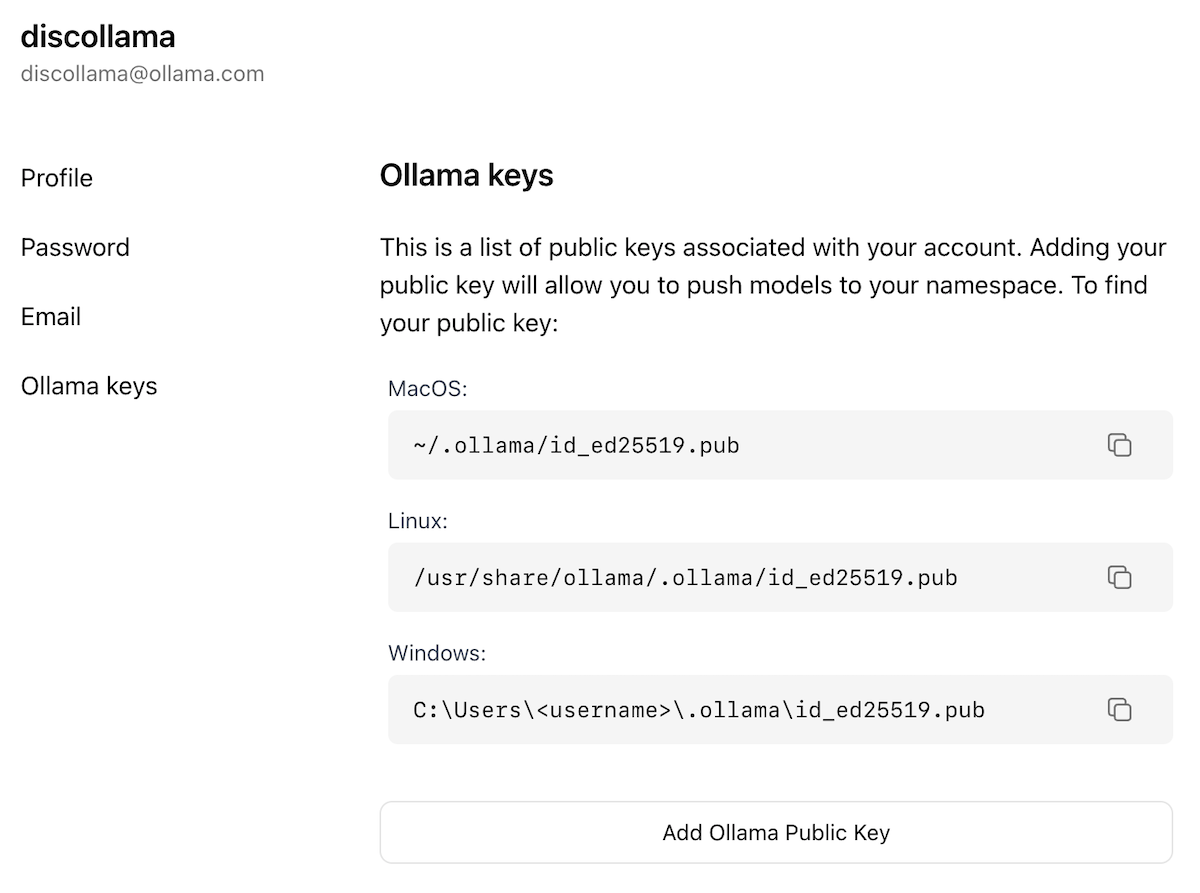
Select Add Ollama Public Key.
Copy the contents of your Ollama Public Key and paste them into the text field.
Make sure your model is named correctly with your username. If it isn't, use the
ollama cpcommand to copy your model to the correct name.Once you're happy with your model's name, use the
ollama pushcommand to push it to ollama.com:ollama cp mymodel myuser/mymodel ollama push myuser/mymodel
After you push your model, other users can pull and run it with the following command:9
ollama run myuser/mymodel
Notes on this page
1 Wording Audit: regression A task title starts with a verb and names the result.
Was:
Importing a Modeltype-title-signals-typeAuditor: “Import a model” omits the page’s goal of sharing a model, making the title less accurate.
2 Added Audit: improved A goal sentence built only from the sections the page already has.
proc-state-goal3 Structure Audit: improved The three Safetensors actions (create, run, test) became numbered steps, with 'First', 'Now' and 'Lastly' dropped because the numbers show the order. Code blocks are unchanged and only indented under their steps.
Was:
First, create aModelfilewith aFROMcommand which points to the directory containing your Safetensors weights:proc-one-action-per-steplist-numbered-for-sequenceproc-imperative4 Wording Audit: improved A contraction, and 'Before you import' says when the preparation happens.
Was:
Ollama does not quantize GGUF models during import. Prepare and quantize them first with a GGUF tool such as llama.cpp'svoice-contractionsproc-prerequisites-first5 Wording Audit: improved The sentence ends in a colon because a code block follows.
Was:
For a split GGUF model, keep the original split filenames and use a wildcard that matches every shard.list-lead-in6 Wording Audit: improved A contraction, and a colon because a code block follows.
Was:
Once you have created yourModelfile, use theollama createcommand to build the model.list-lead-invoice-contractions7 Wording Audit: improved A contraction.
Was:
You can share any model you have created by pushing it tovoice-contractions8 Structure Audit: improved The sharing instructions became seven numbered steps, one action each, with both images kept in place. 'Click on the button' is 'Select' with the label in bold, 'copy and paste' is split into one action, 'e.g.' is 'for example', and the Username field is bold. Every link target is unchanged.
Was:
First, use your browser to go to the Ollama Sign-Up page. If you already have an account, you can skip this step. !Sign-Up TheUsernamefield will be used as part of your model's name (e.g.jmorganca/mymodel), so make sure you are comfortable with the username that you have selected. Now that you have created an account and are signed-in, go to the Ollama Keys Settings page. Follow the directions on the page to determine where your Ollama Public Key is located. !Ollama Keys Click on theAdd Ollama Public Keybutton, and copy and paste the contents of your Ollama Public Key into the text field. To push a model to ollama.com, first make sure that it is named correctly with your username. You may have to use theollama cpcommand to copy your model to give it the correct name. Once you're happy with your model's name, use theollama pushcommand to push it to ollama.com.proc-one-action-per-steplist-numbered-for-sequenceproc-imperativeui-bold-labelsui-select-verb9 Wording Audit: improved Active voice and a shorter lead-in.
Was:
Once your model has been pushed, other users can pull and run it by using the command:voice-present-tenseprin-plain-words
Questions for the owner
?1 The page covers three goals (import Safetensors, import GGUF, share a model); should the sharing section be its own page?
About: “This page shows how to import a model from Safetensors weights or from a GGUF file, and how to share a model on ollama.com.”
?2 The Safetensors steps end with testing the model; should the GGUF steps also end with
ollama run my-model?About: “Once you've created your
Modelfile, use theollama createcommand to build the model:”?3 Is
jmorgancaa real person's handle, and should the example username be a reserved placeholder instead?About: “for example
jmorganca/mymodel”X16
ollama createcommand form. The CLI reference omits the model name, the Modelfile reference passes a name and -f, and Import passes a name without -f. Is a model name required forollama create, and which form should the CLI reference show?X27 Import table of contents anchor does not match its heading. The table of contents links to #sharing-your-model-on-ollama-com, but the heading "Sharing your model on ollama.com" generates a slug without the hyphen before "com". Should the heading get an explicit anchor id matching the link?
Pages: Import a model
X39 Split GGUF import in Import and Modelfile. Both pages explain the wildcard for split GGUF files; only the Modelfile reference mentions separate FROM lines. Should Import link to the Modelfile reference for split GGUF details?
Pages: Import a model, Modelfile reference
Original
Table of Contents
Importing a model from Safetensors weights
First, create a Modelfile with a FROM command which points to the directory containing your Safetensors weights:
FROM /path/to/safetensors/directory
If you create the Modelfile in the same directory as the weights, you can use the command FROM ..
Now run the ollama create command from the directory where you created the Modelfile:
ollama create my-model
Lastly, test the model:
ollama run my-model
Importing a GGUF model
Ollama does not quantize GGUF models during import. Prepare and quantize them first with a GGUF tool such as llama.cpp's llama-quantize.
To import a single-file GGUF model, create a Modelfile containing:
FROM /path/to/file.gguf
For a split GGUF model, keep the original split filenames and use a wildcard that matches every shard.
FROM /path/to/model-*.gguf
Once you have created your Modelfile, use the ollama create command to build the model.
ollama create my-model
Sharing your model on ollama.com
You can share any model you have created by pushing it to ollama.com so that other users can try it out.
First, use your browser to go to the Ollama Sign-Up page. If you already have an account, you can skip this step.
The Username field will be used as part of your model's name (e.g. jmorganca/mymodel), so make sure you are comfortable with the username that you have selected.
Now that you have created an account and are signed-in, go to the Ollama Keys Settings page.
Follow the directions on the page to determine where your Ollama Public Key is located.
Click on the Add Ollama Public Key button, and copy and paste the contents of your Ollama Public Key into the text field.
To push a model to ollama.com, first make sure that it is named correctly with your username. You may have to use the ollama cp command to copy
your model to give it the correct name. Once you're happy with your model's name, use the ollama push command to push it to ollama.com.
ollama cp mymodel myuser/mymodel
ollama push myuser/mymodel
Once your model has been pushed, other users can pull and run it by using the command:
ollama run myuser/mymodel
What Changed
The page now has a verb-led title and goal sentence. The Safetensors and sharing procedures became numbered lists with one action per step and bold interface labels, and wording was tightened (contractions, no 'e.g.', 'select' for 'click'). Headings are unchanged so the page's anchor links keep working, and questions cover the page's several goals, a missing check after the GGUF steps, and a personal-looking example name.
Content type: task. The page walks a reader through importing a model from Safetensors or GGUF files and sharing it on ollama.com, each a procedure with a result.
Automated check, original: 0 errors, 3 warnings, 3 suggestions. Revised: 0 errors, 2 warnings, 0 suggestions.
Independent audit (GPT-6): mixed. The revision makes the procedures easier to scan and follow, and it preserves the code blocks and link targets. The new title no longer covers the page’s sharing section, so the page’s overall framing is less accurate.
Regressions:
- The new title covers importing but not sharing, although sharing has its own full section on the page.
What the revision missed:
- The standard says informative images need alt text; both instructional images still have no alt text.
- The page title should signal both of its goals: importing and sharing a model.
Structure (2)
- 3 The three Safetensors actions (create, run, test) became numbered steps, with 'First', 'Now' and 'Lastly' dropped because the numbers show the order. Code blocks are unchanged and only indented under their steps. improved
- 8 The sharing instructions became seven numbered steps, one action each, with both images kept in place. 'Click on the button' is 'Select' with the label in bold, 'copy and paste' is split into one action, 'e.g.' is 'for example', and the Username field is bold. Every link target is unchanged. improved
Wording (6)
- 1 A task title starts with a verb and names the result. regression
- 4 A contraction, and 'Before you import' says when the preparation happens. improved
- 5 The sentence ends in a colon because a code block follows. improved
- 6 A contraction, and a colon because a code block follows. improved
- 7 A contraction. improved
- 9 Active voice and a shorter lead-in. improved
Added (1)
- 2 A goal sentence built only from the sections the page already has. improved