Use Goose with Ollama1
Revised
This page shows how to set up Ollama as the provider in Goose Desktop and Goose CLI, locally or through ollama.com.2
Goose Desktop
Install Goose Desktop.
Usage with Ollama
- In Goose, open Settings → Configure Provider.
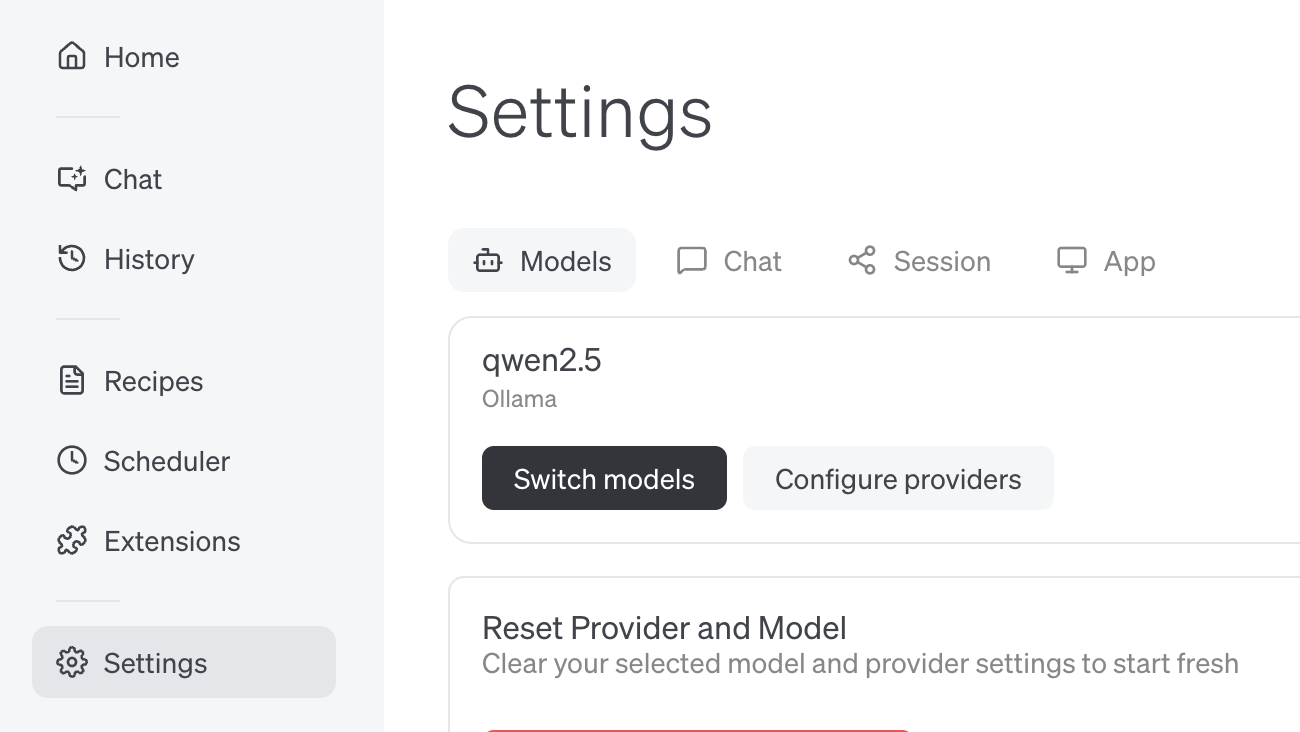
2. 3Find **Ollama**. 3. Select **Configure**. 4. Confirm **API Host** is `http://localhost:11434`. 5. Select **Submit**.?1
Connect to ollama.com4
- 5Create an API key on ollama.com.
- Save it in your
.env. - In Goose, set API Host to
https://ollama.com
Goose CLI
Usage with Ollama
- Run
goose configure - 7Select Configure Providers.
- Select Ollama.
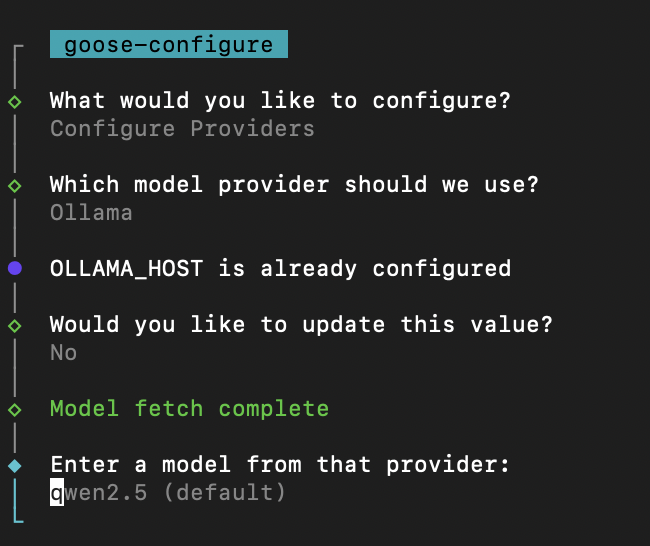
4. 8Enter a model name, such as `qwen3`.
Connect to ollama.com9
Notes on this page
1 Wording Audit: improved A task title starts with a verb and names the result.
Was:
Goosetype-task-one-goalproc-state-goalAuditor: The verb-led title states what readers can do with the page.
2 Added Audit: improved A goal sentence tells the reader what the page covers.
proc-state-goalAuditor: The opening sentence previews the two Goose versions and connection options covered.
3 Structure Audit: improved Two steps held two actions each, so they are now four steps, and "click" is now "select".
Was:
Find Ollama, click Configure 3. Confirm API Host ishttp://localhost:11434and click Submitproc-one-action-per-stepSelectVerbAuditor: Splitting the instructions makes each action easier to follow while preserving the host value and submit action.
4 Wording Audit: improved The heading now names the action.
Was:
Connecting to ollama.comproc-imperativeAuditor: The heading names the action readers will take.
5 Structure Audit: improved The step held two actions, so it is now two steps.
Was:
Create an API key on ollama.com and save it in your.envproc-one-action-per-stepAuditor: Separating API key creation from saving it makes the steps easier to follow.
6 Wording Audit: improved A full sentence ends with a period.
Was:
Install Goose CLIlist-terminal-punctuationAuditor: The installation sentence now ends with a period.
7 Structure Audit: improved The step held two actions, so it is now two steps.
Was:
Select Configure Providers and select Ollamaproc-one-action-per-stepAuditor: Separating provider selection into two steps makes each step easier to scan.
8 Wording Audit: improved Use "such as" instead of "e.g" and give the step a full sentence.
Was:
Enter model name (e.gqwen3)punct-no-latin-abbreviationsvoice-second-personAuditor: “Such as” replaces the abbreviation, and the instruction reads as a complete sentence.
9 Wording Audit: improved The heading now names the action.
Was:
Connecting to ollama.comproc-imperativeAuditor: The heading names the action readers will take.
10 Structure Audit: improved Steps that held two actions are split, so the list is now six steps.
Was:
1. Create an API key on ollama.com and save it in your.env2. Rungoose configure3. Select Configure Providers and select Ollamaproc-one-action-per-stepAuditor: Splitting the combined actions makes the CLI setup sequence easier to follow.
Questions for the owner
?1 What should the reader see in Goose when the provider is set up, and where should they go next? The page gives neither for Desktop or CLI.
About: “Confirm API Host is
http://localhost:11434and click Submit”X31 Client use of OLLAMA_HOST is not documented. The FAQ documents OLLAMA_HOST only as the server bind address, while Speech and Goose use it to point a client at another server. Should the FAQ or CLI reference document OLLAMA_HOST as the client's target server too?
Pages: Local FAQ, Speech, Use Goose with Ollama
Original
Goose Desktop
Install Goose Desktop.
Usage with Ollama
- In Goose, open Settings → Configure Provider.
2. Find **Ollama**, click **Configure** 3. Confirm **API Host** is `http://localhost:11434` and click Submit
Connecting to ollama.com
- Create an API key on ollama.com and save it in your
.env - In Goose, set API Host to
https://ollama.com
Goose CLI
Install Goose CLI
Usage with Ollama
- Run
goose configure - Select Configure Providers and select Ollama
3. Enter model name (e.g `qwen3`)
Connecting to ollama.com
- Create an API key on ollama.com and save it in your
.env - Run
goose configure - Select Configure Providers and select Ollama
- Update OLLAMA_HOST to
https://ollama.com
What Changed
The title now starts with a verb and a goal sentence opens the page. Every step that held two actions is split, "click" is now "select", and the connection headings use a verb. The page doesn't say how to confirm the provider works, so that is a question for the owner, and the OLLAMA_HOST use is flagged against the FAQ.
Content type: task. The page gives the steps to set up Ollama as the provider in Goose, in one variant for Desktop and one for CLI.
Automated check, original: 0 errors, 4 warnings, 0 suggestions. Revised: 0 errors, 2 warnings, 0 suggestions.
Independent audit (GPT-6): improved. The revision makes the setup steps easier to scan and gives the page a clearer goal. It leaves some punctuation inconsistent and the setup question unresolved for the page owner.
What the revision missed:
- The page still does not tell readers how to verify setup or what to do next; the revision raises this as q1 for the owner but does not resolve it.
- Punctuation remains inconsistent: the Desktop installation line and several numbered steps lack terminal punctuation while neighboring revised steps include it.
Structure (4)
- 3 Two steps held two actions each, so they are now four steps, and "click" is now "select". improved
- 5 The step held two actions, so it is now two steps. improved
- 7 The step held two actions, so it is now two steps. improved
- 10 Steps that held two actions are split, so the list is now six steps. improved
Wording (5)
- 1 A task title starts with a verb and names the result. improved
- 4 The heading now names the action. improved
- 6 A full sentence ends with a period. improved
- 8 Use "such as" instead of "e.g" and give the step a full sentence. improved
- 9 The heading now names the action. improved
Added (1)
- 2 A goal sentence tells the reader what the page covers. improved