Use Cline with Ollama1
Revised
This page shows how to set up Cline to use Ollama models, either through your own Ollama or through ollama.com.2
Before you begin3
Install Cline in your IDE.
Connect Cline to Ollama4
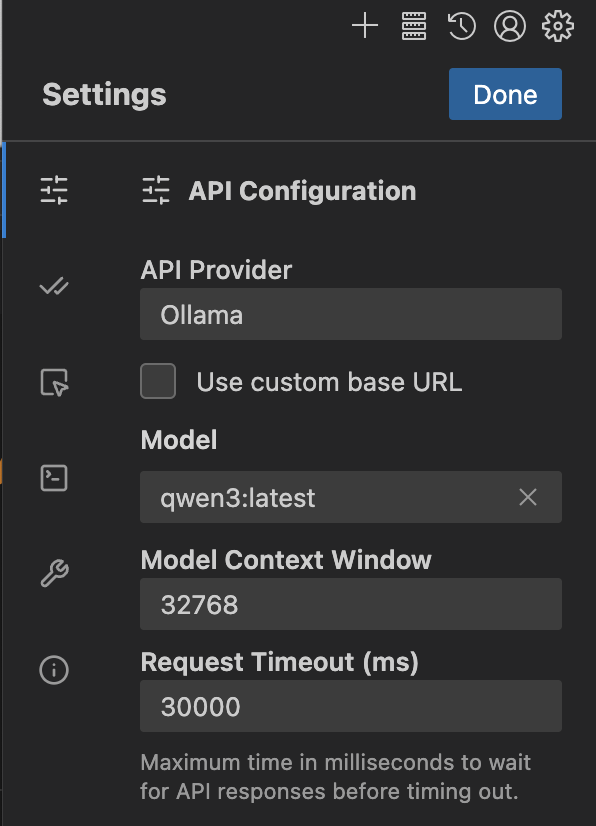
- In Cline settings, go to API Configuration.5
- Set API Provider to Ollama.6
- Under Model, select a model or enter one, for example
qwen3.7 - Under Context Window, set at least 32K tokens.8
Note: Use a context window of at least 32K tokens for coding.X11
Connect Cline to ollama.com10
- Create an API key from ollama.com.
- Select Use custom base URL.11
- Set the base URL to
https://ollama.com.12 - Enter your Ollama API Key.
- Select a model from the list.
Models
Choose a cloud model that supports tool calling.
Notes on this page
1 Wording Audit: improved A task title starts with a verb and names the result.
Was:
Clineproc-state-goalAuditor: “Use Cline with Ollama” names the task and starts with a verb.
2 Added Audit: improved Added a goal sentence before the steps, using only what the page already covers.
proc-state-goalAuditor: The opening sentence tells readers what the page helps them do.
3 Wording Audit: improved Prerequisites go under a heading that says so.
Was:
Installproc-prerequisites-firstAuditor: “Before you begin” clearly labels the installation prerequisite.
4 Wording Audit: improved The heading now names the job.
Was:
Usage with Ollamatype-task-one-goalAuditor: “Connect Cline to Ollama” describes the steps under the heading more clearly than “Usage with Ollama.”
5 Wording Audit: improved The step held two actions, so it is now two steps. Labels are bold instead of code font.
Was:
Open Cline settings >API Configurationand setAPI ProvidertoOllamaui-bold-labelsAuditor: The step now gives one action and makes the interface label easier to spot.
6 Wording Audit: improved Second half of the original step 1, now its own step, with labels in bold.
Was:
setAPI ProvidertoOllamaui-bold-labelsproc-one-action-per-stepAuditor: The provider selection is now a distinct, single-action step.
7 Wording Audit: improved Label in bold and 'for example' instead of 'e.g.'. Type became enter.
Was:
Select a model underModelor type one (e.g.qwen3)ui-bold-labelsLatinAuditor: The model step is easier to scan, and “for example” is clearer than “e.g.”
8 Wording Audit: improved Starts with the label's action and puts the label in bold. The 32K figure is unchanged.
Was:
Update the context window to at least 32K tokens underContext Windowui-bold-labelsui-enter-verbAuditor: The context-window step is more direct and preserves the original 32K instruction.
9 Structure Audit: regression The image is now plain Markdown, with the same file and the same alt text.
Was:
<div style={{ display: 'flex', justifyContent: 'center' }}><img src="/images/cline-settings.png" ... /></div>img-alt-requiredAuditor: The Markdown image drops the original 50% width, changing the specified display size.
10 Wording Audit: improved The heading now names the job.
Was:
Connecting to ollama.comtype-task-one-goalAuditor: “Connect Cline to ollama.com” names the task more directly than “Connecting to ollama.com.”
11 Wording Audit: regression The step held two actions, so it is now two steps. 'Click on' became 'Select' and the label is bold.
Was:
Click onUse custom base URLand set it tohttps://ollama.comproc-one-action-per-stepui-bold-labelsAuditor: Changing “Click on” to “Select” changes the interaction instruction without evidence that the interface uses selection.
12 Wording Audit: improved Second half of the original step 2, now its own step. The URL is unchanged.
Was:
set it tohttps://ollama.comproc-one-action-per-stepAuditor: The base URL is now a separate, direct step.
Questions for the owner
?1 What should the reader see when Cline is connected to Ollama, so the page can end with a way to confirm it worked?
About: “Select a model from the list”
X11 Recommended minimum context for agents, coding and web search. Context length and most coding integrations say 64k, while Web search says about 32000 and Cline and Roo Code say 32K for coding; the 64k note is also repeated on many integration pages. Is the recommended minimum 32k or 64k, and should integration pages link to one statement instead of repeating it?
Pages: Context length, Web search, Use Cline with Ollama, Use Roo Code with Ollama, OpenCode, Run Codex CLI with Ollama, Run Droid with Ollama
Original
Install
Install Cline in your IDE.
Usage with Ollama
- Open Cline settings >
API Configurationand setAPI ProvidertoOllama - Select a model under
Modelor type one (e.g.qwen3) - Update the context window to at least 32K tokens under
Context Window
Note: Use a context window of at least 32K tokens for coding.
Connecting to ollama.com
- Create an API key from ollama.com
- Click on
Use custom base URLand set it tohttps://ollama.com - Enter your Ollama API Key
- Select a model from the list
Models
Choose a cloud model that supports tool calling.
What Changed
The page now has a verb title, a goal sentence and a prerequisite heading. Interface labels are in bold as the steps name them, and click became select. The 32K context figure and the missing confirmation step are raised as questions, and the page's wording is kept.
Content type: task. The page gives the steps to point Cline at Ollama, for a reader who already wants to do that.
Automated check, original: 0 errors, 2 warnings, 0 suggestions. Revised: 0 errors, 0 warnings, 0 suggestions.
Independent audit (GPT-6): mixed. The revision is easier to scan, and its steps and headings are clearer. It also removes the image’s specified width, and one instruction changes how the reader interacts with the interface.
Regressions:
- The image’s original width setting is lost, so its display size may change.
- The ollama.com step now says to select the custom URL option, although the original says to click it; the revision does not establish that these actions are equivalent.
What the revision missed:
- The page ends without telling readers what to do if the connection does not work; the revision raises a question about confirming success but leaves it unanswered.
Structure (1)
- 9 The image is now plain Markdown, with the same file and the same alt text. regression
Wording (10)
- 1 A task title starts with a verb and names the result. improved
- 3 Prerequisites go under a heading that says so. improved
- 4 The heading now names the job. improved
- 5 The step held two actions, so it is now two steps. Labels are bold instead of code font. improved
- 6 Second half of the original step 1, now its own step, with labels in bold. improved
- 7 Label in bold and 'for example' instead of 'e.g.'. Type became enter. improved
- 8 Starts with the label's action and puts the label in bold. The 32K figure is unchanged. improved
- 10 The heading now names the job. improved
- 11 The step held two actions, so it is now two steps. 'Click on' became 'Select' and the label is bold. regression
- 12 Second half of the original step 2, now its own step. The URL is unchanged. improved
Added (1)
- 2 Added a goal sentence before the steps, using only what the page already covers. improved