Use Ollama in n8n1
Revised
This page shows how to add Ollama credentials in n8n and use an Ollama model in a workflow, either through your own Ollama or through ollama.com.2
Before you begin3
Install n8n.
Connect n8n to Ollama4
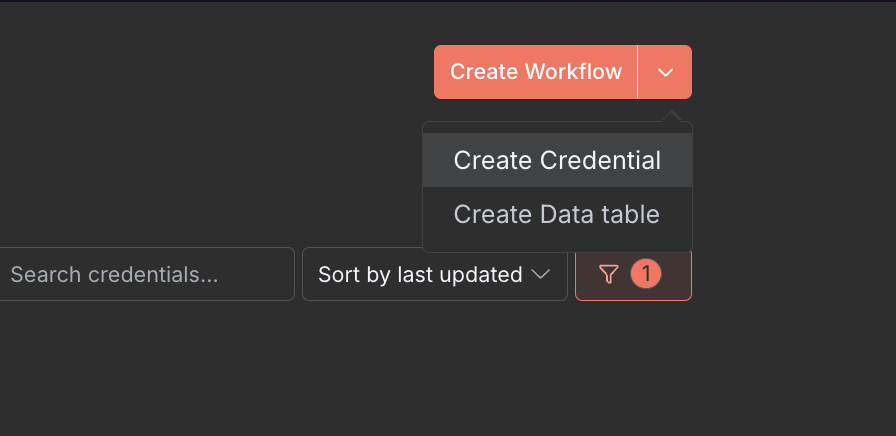
In the top right corner, select the dropdown.5
Select Create Credential.6
Under Add new credential, select Ollama.
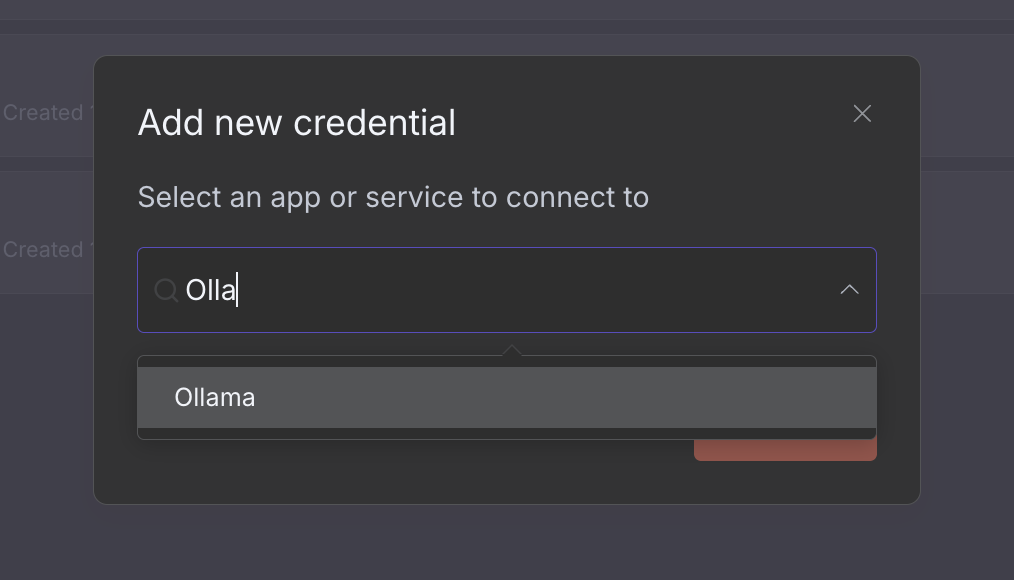
Confirm Base URL is set to
http://localhost:11434if running locally orhttp://host.docker.internal:11434if running through Docker.8X32Note: In environments that don't use Docker Desktop (that is9, Linux server installations),
host.docker.internalisn't10 automatically added.Run n8n in Docker11 with
--add-host=host.docker.internal:host-gatewayor add the following to a Docker Compose12 file:
extra_hosts:
- "host.docker.internal:host-gateway"
Select Save. You should see a
Connection tested successfullymessage.13When you create a new workflow, select Add a first step.14
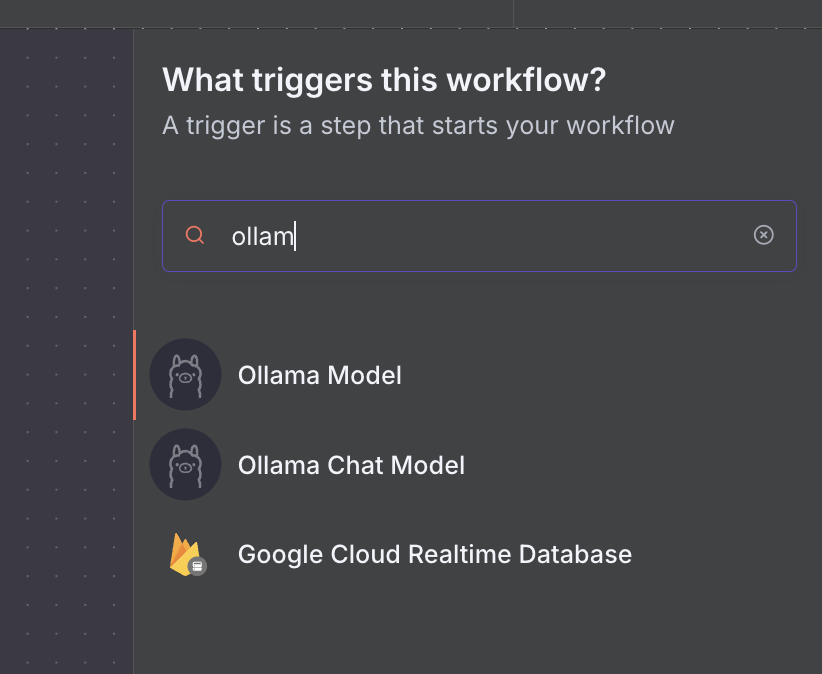
Select an Ollama node.15
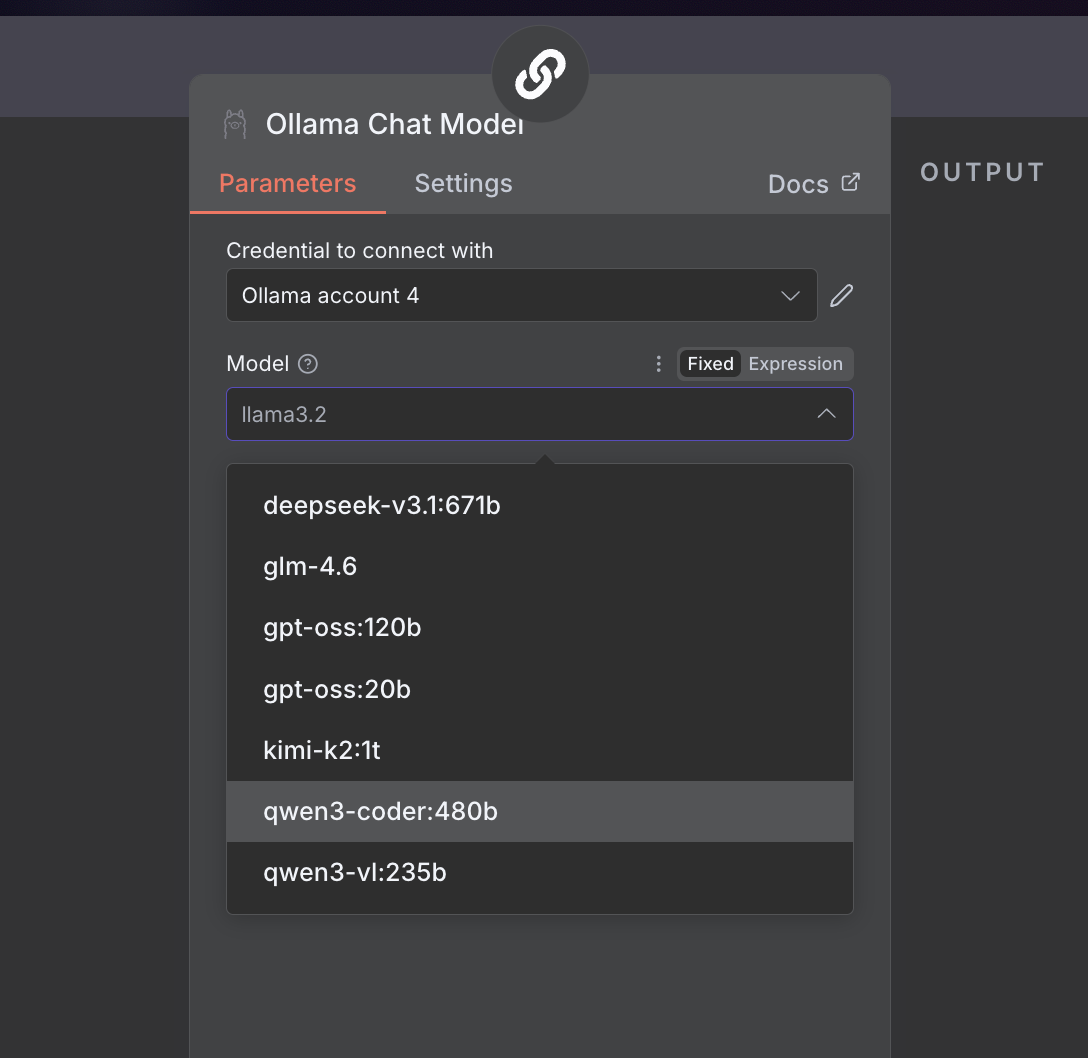
Select your model of choice, for example16
qwen3-coder.
Connect n8n to ollama.com18
Notes on this page
1 Wording Audit: improved A task title starts with a verb and names the result.
Was:
n8nproc-state-goalAuditor: The verb-led title says what readers can do on the page.
2 Added Audit: improved Added a goal sentence before the steps, using only what the page already covers.
proc-state-goalAuditor: The opening sentence previews the two connection paths covered by the page.
3 Wording Audit: improved Prerequisites go under a heading that says so.
Was:
Installproc-prerequisites-firstAuditor: The heading makes the installation prerequisite easier to find.
4 Wording Audit: improved The heading now names the job, in sentence case.
Was:
Using Ollama LocallyHeadingCasetype-task-one-goalAuditor: The heading uses sentence case and names the task.
5 Wording Audit: regression The step held two actions, so it is now two steps, with select instead of click.
Was:
In the top right corner, click the dropdown and select Create Credentialproc-one-action-per-stepSelectVerbAuditor: “Select the dropdown” obscures the action needed to open it; retain “click the dropdown.”
6 Wording Audit: improved Second action of the original step 1, now its own step.
Was:
select Create Credentialproc-one-action-per-stepAuditor: Separating credential creation into its own step makes the sequence easier to follow.
7 Structure Audit: improved The images were outside the numbered list, which broke the numbering. They are now plain Markdown inside the steps, with the same files. 'a n8n' became 'an n8n' in the first alt text.
Was:
<div style={{ display: 'flex', justifyContent: 'center' }}><img ... alt="Create a n8n Credential" /></div>proc-one-action-per-stepimg-alt-requiredAuditor: The image remains in the numbered sequence and its alt text is grammatically corrected.
8 Wording Audit: improved The step held two actions, so Save is now its own step. The label is bold and Docker is capitalized. Both URLs are unchanged.
Was:
Confirm Base URL is set tohttp://localhost:11434if running locally orhttp://host.docker.internal:11434if running through docker and click Saveproc-one-action-per-stepui-bold-labelscap-product-names-exactAuditor: The URL choices are easier to scan, Docker is capitalized, and Save is separated into its own step.
9 Wording Audit: improved 'ie' is a different abbreviation from 'for example' and means 'that is', so it is spelled out.
Was:
ie,LatinAuditor: Spelling out “that is” makes the note clearer.
10 Wording Audit: improved The voice uses contractions.
Was:
is notContractionsAuditor: The contraction keeps the note conversational and concise.
11 Wording Audit: improved Docker is a product name. The command in the same sentence is unchanged.
Was:
dockercap-product-names-exactAuditor: Docker is correctly capitalized as a product name.
12 Wording Audit: improved Docker Compose is a product name. The YAML below is unchanged.
Was:
docker composecap-product-names-exactAuditor: Docker Compose is correctly capitalized as a product name.
13 Wording Audit: improved Save is its own step now, and the result sits in that step, which is where the message appears. The Docker note moved to step 4, which it explains.
Was:
click Save You should see aConnection tested successfullymessage.proc-result-in-stepproc-one-action-per-stepAuditor: The success message now follows the Save step it reports.
14 Wording Audit: improved The step held two actions, so it is now two steps (6 and 7). The condition stays first.
Was:
When creating a new workflow, select Add a first step and select an Ollama nodeproc-one-action-per-stepproc-condition-and-optionalAuditor: Splitting the workflow setup into separate actions makes the steps easier to follow.
15 Wording Audit: improved Second action of the original step 4, now its own step.
Was:
select an Ollama nodeproc-one-action-per-stepAuditor: The Ollama node selection is now a distinct step.
16 Wording Audit: improved Plain words instead of a Latin abbreviation.
Was:
e.g.LatinAuditor: Spelling out “for example” is clearer than the abbreviation.
17 Accuracy Audit: improved This alt text sat on the model selection image and described the credentials step. It now describes the step the image sits under.
Was:
Set up Ollama credentialsimg-alt-requiredAuditor: The model image now has alt text that describes the step it illustrates.
18 Wording Audit: improved The heading now names the job.
Was:
Connecting to ollama.comtype-task-one-goalAuditor: The heading describes the connection task in sentence case.
19 Wording Audit: improved The step held two actions, so it is now two steps, with select instead of click. The list also skipped a number (1, 2, 4, 5), which is now fixed.
Was:
In n8n, click Create Credential and select Ollamaproc-one-action-per-stepSelectVerbAuditor: Splitting credential creation and Ollama selection clarifies the sequence and fixes the numbering.
20 Wording Audit: improved Second action of the original step 2, now its own step.
Was:
select Ollamaproc-one-action-per-stepAuditor: Selecting Ollama is now a distinct step.
21 Wording Audit: improved Renumbered after the skipped step. The text is unchanged.
Was:
Set the API URL tohttps://ollama.comui-bold-labelsAuditor: The API URL instruction is unchanged and its numbering is corrected.
22 Wording Audit: improved The step held two actions, so Save is now its own step, with select instead of click.
Was:
Enter your API Key and click Saveproc-one-action-per-stepSelectVerbAuditor: Separating Save makes the final credential steps easier to follow.
Questions for the owner
X32 Docker host URL with and without port. n8n gives the Docker host URL with port 11434, while Onyx gives it without a port. Should the Onyx note include the :11434 port?
Original
Install
Install n8n.
Using Ollama Locally
- In the top right corner, click the dropdown and select Create Credential
- Under Add new credential select Ollama
3. Confirm Base URL is set to `http://localhost:11434` if running locally or `http://host.docker.internal:11434` if running through docker and click **Save**
Note: In environments that don't use Docker Desktop (ie, Linux server installations),
host.docker.internalis not automatically added.Run n8n in docker with
--add-host=host.docker.internal:host-gatewayor add the following to a docker compose file:
extra_hosts:
- "host.docker.internal:host-gateway"
You should see a Connection tested successfully message.
- When creating a new workflow, select Add a first step and select an Ollama node
5. Select your model of choice (e.g. `qwen3-coder`)
Connecting to ollama.com
- Create an API key on ollama.com.
- In n8n, click Create Credential and select Ollama
- Set the API URL to
https://ollama.com - Enter your API Key and click Save
What Changed
The page now has a verb title, a goal sentence and a prerequisite heading. Steps hold one action each, click became select, and the images and the Docker note sit inside the numbered list so the numbering holds. The skipped step number on the ollama.com steps is fixed, and one image alt text that described the wrong step is corrected.
Content type: task. The page gives the steps to add Ollama credentials in n8n and use an Ollama model in a workflow.
Automated check, original: 0 errors, 10 warnings, 1 suggestions. Revised: 0 errors, 0 warnings, 0 suggestions.
Independent audit (GPT-6): mixed. The revision is easier to scan, fixes the skipped step number, and gives the images more useful alt text. It also changes an instruction for opening the credential dropdown in a way that could make the step harder to follow.
Regressions:
- Step 1 says to select the dropdown, which may not tell readers to click it to open it.
Structure (1)
- 7 The images were outside the numbered list, which broke the numbering. They are now plain Markdown inside the steps, with the same files. 'a n8n' became 'an n8n' in the first alt text. improved
Wording (19)
- 1 A task title starts with a verb and names the result. improved
- 3 Prerequisites go under a heading that says so. improved
- 4 The heading now names the job, in sentence case. improved
- 5 The step held two actions, so it is now two steps, with select instead of click. regression
- 6 Second action of the original step 1, now its own step. improved
- 8 The step held two actions, so Save is now its own step. The label is bold and Docker is capitalized. Both URLs are unchanged. improved
- 9 'ie' is a different abbreviation from 'for example' and means 'that is', so it is spelled out. improved
- 10 The voice uses contractions. improved
- 11 Docker is a product name. The command in the same sentence is unchanged. improved
- 12 Docker Compose is a product name. The YAML below is unchanged. improved
- 13 Save is its own step now, and the result sits in that step, which is where the message appears. The Docker note moved to step 4, which it explains. improved
- 14 The step held two actions, so it is now two steps (6 and 7). The condition stays first. improved
- 15 Second action of the original step 4, now its own step. improved
- 16 Plain words instead of a Latin abbreviation. improved
- 18 The heading now names the job. improved
- 19 The step held two actions, so it is now two steps, with select instead of click. The list also skipped a number (1, 2, 4, 5), which is now fixed. improved
- 20 Second action of the original step 2, now its own step. improved
- 21 Renumbered after the skipped step. The text is unchanged. improved
- 22 The step held two actions, so Save is now its own step, with select instead of click. improved
Accuracy (1)
- 17 This alt text sat on the model selection image and described the credentials step. It now describes the step the image sits under. improved
Added (1)
- 2 Added a goal sentence before the steps, using only what the page already covers. improved