Use Ollama in JetBrains IDEs1
Revised
This page shows how to select an Ollama model in the JetBrains AI chat. It uses IntelliJ, and the same steps apply to other JetBrains IDEs, for example PyCharm.2
Before you begin3
- Install IntelliJ.
- Get a JetBrains AI Subscription. You need it to use Ollama.4
Select an Ollama model5
Notes on this page
1 Wording Audit: improved A task title starts with a verb and names the result.
Was:
JetBrainsproc-state-goalAuditor: The title names the task directly.
2 Structure Audit: improved The opening note is now a goal sentence that keeps the same facts, with 'for example' instead of 'e.g.'.
Was:
> Note: This example uses IntelliJ; same steps apply to other JetBrains IDEs (e.g., PyCharm).proc-state-goalLatinAuditor: The opening explains the page’s goal and preserves the IntelliJ and PyCharm scope.
3 Wording Audit: improved Prerequisites go under a heading that says so, before the steps.
Was:
Installproc-prerequisites-firstAuditor: The prerequisite heading makes the section’s contents clear.
4 Structure Audit: improved The subscription is a prerequisite, so it moved from a note after the heading to the list before the steps. The link is unchanged.
Was:
> Note: To use Ollama, you will need a JetBrains AI Subscription.proc-prerequisites-firstPronounContractionsAuditor: The subscription requirement is easier to find before the instructions begin.
5 Wording Audit: improved The heading now names the job.
Was:
Usage with Ollamatype-task-one-goalAuditor: The heading says what the reader will do.
6 Wording Audit: neutral Select instead of click, IntelliJ spelled as the product spells it, and 'located' dropped.
Was:
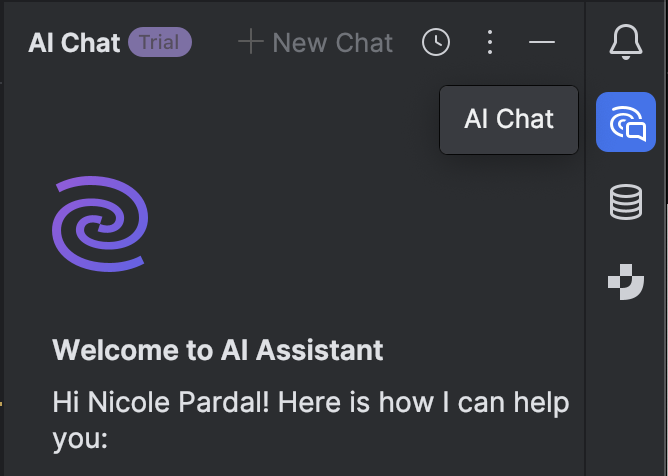
In Intellij, click the chat icon located in the right sidebarSelectVerbcap-product-names-exactAuditor: Correcting the product name and trimming “located” help, but “select” is not clearly better than “click” for an icon.
7 Wording Audit: regression Alt text of the first two images now spells IntelliJ correctly. The images are plain Markdown instead of HTML, with the same files.
Was:
Intellij Sidebar Chat; Intellij model bottom right cornercap-product-names-exactAuditor: Replacing the HTML images with Markdown drops their centering and 50% width, changing how they appear on the page.
8 Wording Audit: improved The step held two actions, so it is now two steps.
Was:
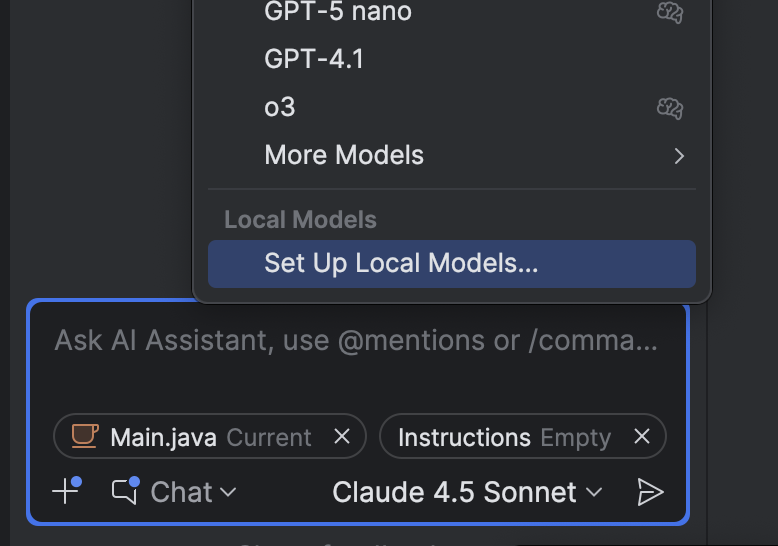
Select the current model in the sidebar, then click Set up Local ModelsSelectVerbproc-one-action-per-stepAuditor: Splitting the model choice from the setup action makes the steps easier to follow.
9 Wording Audit: improved Second half of the original step 2, now its own step. The label is unchanged.
Was:
then click Set up Local ModelsSelectVerbproc-one-action-per-stepAuditor: The setup action is now a standalone step.
10 Wording Audit: neutral The step held two actions, so it is now two steps, with select instead of click.
Was:
Confirm the Host URL ishttp://localhost:11434, then click OkSelectVerbproc-one-action-per-stepAuditor: Separating the URL check and confirmation makes the sequence clearer, though “select Ok” is less natural than “click Ok” for a button.
11 Accuracy Audit: improved This alt text was copied from the Zed page and describes the wrong image. It now describes the step the image sits under.
Was:
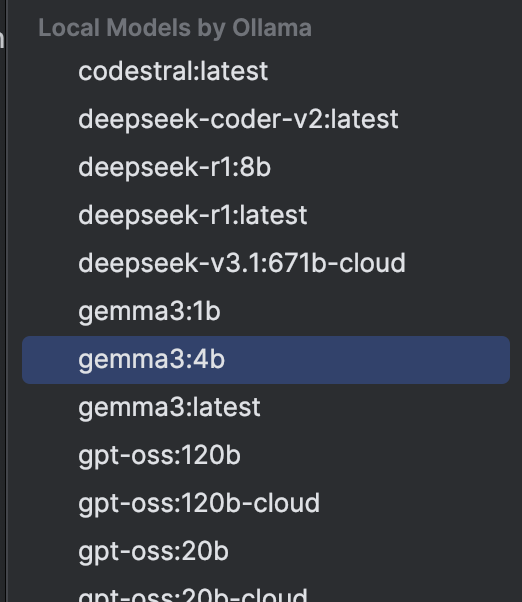
Zed star icon in bottom right cornerimg-alt-requiredAuditor: The revised alt text no longer describes the wrong product and indicates what the image shows.
Original
Note: This example uses IntelliJ; same steps apply to other JetBrains IDEs (e.g., PyCharm).
Install
Install IntelliJ.
Usage with Ollama
Note: To use Ollama, you will need a JetBrains AI Subscription.
- In Intellij, click the chat icon located in the right sidebar
- Select the current model in the sidebar, then click Set up Local Models
- Under Third Party AI Providers, choose Ollama
- Confirm the Host URL is
http://localhost:11434, then click Ok - Once connected, select a model under Local models by Ollama
What Changed
The title names the job, a goal sentence replaces the opening note, and the subscription requirement moved from the middle of the page into a prerequisite list. The steps are one action each, with click changed to select and IntelliJ spelled as the product spells it. Two image alt texts were corrected.
Content type: task. The page gives the steps to pick an Ollama model in the JetBrains chat.
Automated check, original: 0 errors, 5 warnings, 1 suggestions. Revised: 0 errors, 1 warnings, 0 suggestions.
Independent audit (GPT-6): mixed. The revision makes the page easier to scan by moving the subscription requirement into the prerequisites and separating the setup steps. It also changes the images’ presentation, and some interface actions are less precise when written as “select.”
Regressions:
- The Markdown image syntax removes the original images’ centering and 50% width, changing their layout.
Structure (2)
- 2 The opening note is now a goal sentence that keeps the same facts, with 'for example' instead of 'e.g.'. improved
- 4 The subscription is a prerequisite, so it moved from a note after the heading to the list before the steps. The link is unchanged. improved
Wording (8)
- 1 A task title starts with a verb and names the result. improved
- 3 Prerequisites go under a heading that says so, before the steps. improved
- 5 The heading now names the job. improved
- 6 Select instead of click, IntelliJ spelled as the product spells it, and 'located' dropped. neutral
- 7 Alt text of the first two images now spells IntelliJ correctly. The images are plain Markdown instead of HTML, with the same files. regression
- 8 The step held two actions, so it is now two steps. improved
- 9 Second half of the original step 2, now its own step. The label is unchanged. improved
- 10 The step held two actions, so it is now two steps, with select instead of click. neutral
Accuracy (1)
- 11 This alt text was copied from the Zed page and describes the wrong image. It now describes the step the image sits under. improved